Product scene compositor: FLUX.1 schnell backgrounds, unchanged product pixels
Upload a transparent product PNG and a scene prompt. FLUX.1 schnell generates three backdrops; the product is composited from its alpha, so labels and logos are never redrawn.


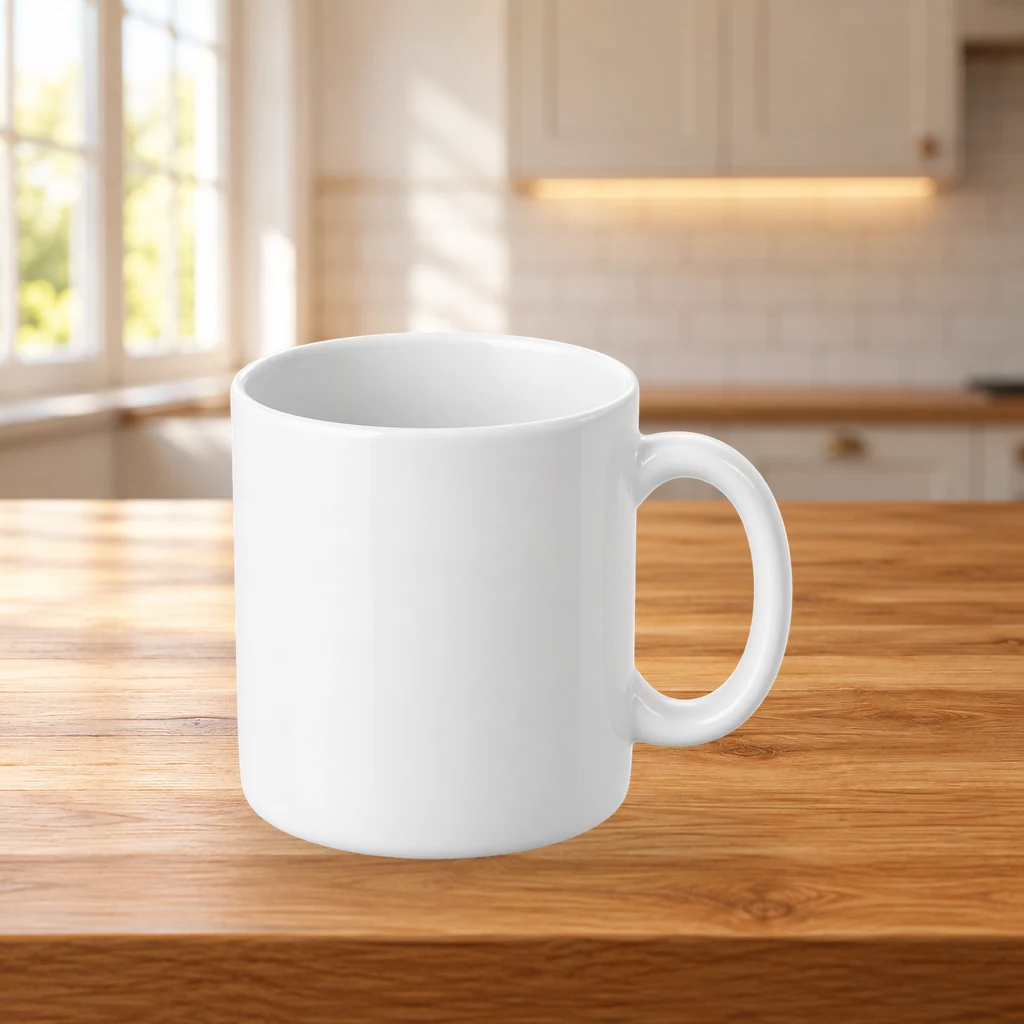

These are fixed historical examples. The demo does not execute workflows or offer redemption and downloads.
Overview
Generate the world, not the product
Most “product background” workflows hand the whole image to the model. Packaging text, logos and color codes drift. This workflow splits the job: the model only generates the backdrop; product pixels come from your transparent PNG and are composited with a mask.
Packaging text cannot drift, and the model cannot repaint the product color.
Output
One job produces three 1024×1024 scenes with the same product position and contact shadow. The prompt describes the environment only, such as “warm wood table, window light from the left, shallow depth of field”. Do not describe the product itself.
Pipeline
- 1Load the transparent product PNG and center it on 1024 square
- 2FLUX.1-schnell generates three backdrops in 4 steps
- 3Derive the contact shadow from alpha
- 4Composite the shadow, then the product
- 5Save three scenes
Limits
No product relighting or color matching. If the source product has hard side light and the prompt asks for soft window light, the composite will look pasted. The tutorial covers matching light direction and when to use the relight workflow.
Clean-room graph authored for LatentBay; no third-party workflow JSON, prompts, images, video or prose copied. output license: commercial FLUX.1-schnell: Apache-2.0 (https://huggingface.co/black-forest-labs/FLUX.1-schnell) ComfyUI core: GPL-3.0 (https://github.com/comfyanonymous/ComfyUI)
Related guides
FLUX.1 schnell product scenes without regenerating the product
Generate the set, composite the real product, and ground it with a contact shadow. A clean-room workflow that keeps packaging text and logos pixel-identical.
Product relight: matching a cutout to the scene light
A low-denoise FLUX.1 schnell pass masked by the product alpha, with the original alpha reattached. Where the safe range is, and when not to use it.
Grounded contact shadows in ComfyUI without Photoshop
A clean cutout can still look pasted. Learn how to derive a believable contact shadow from the product alpha, and which preset fits which surface.
Related workflows
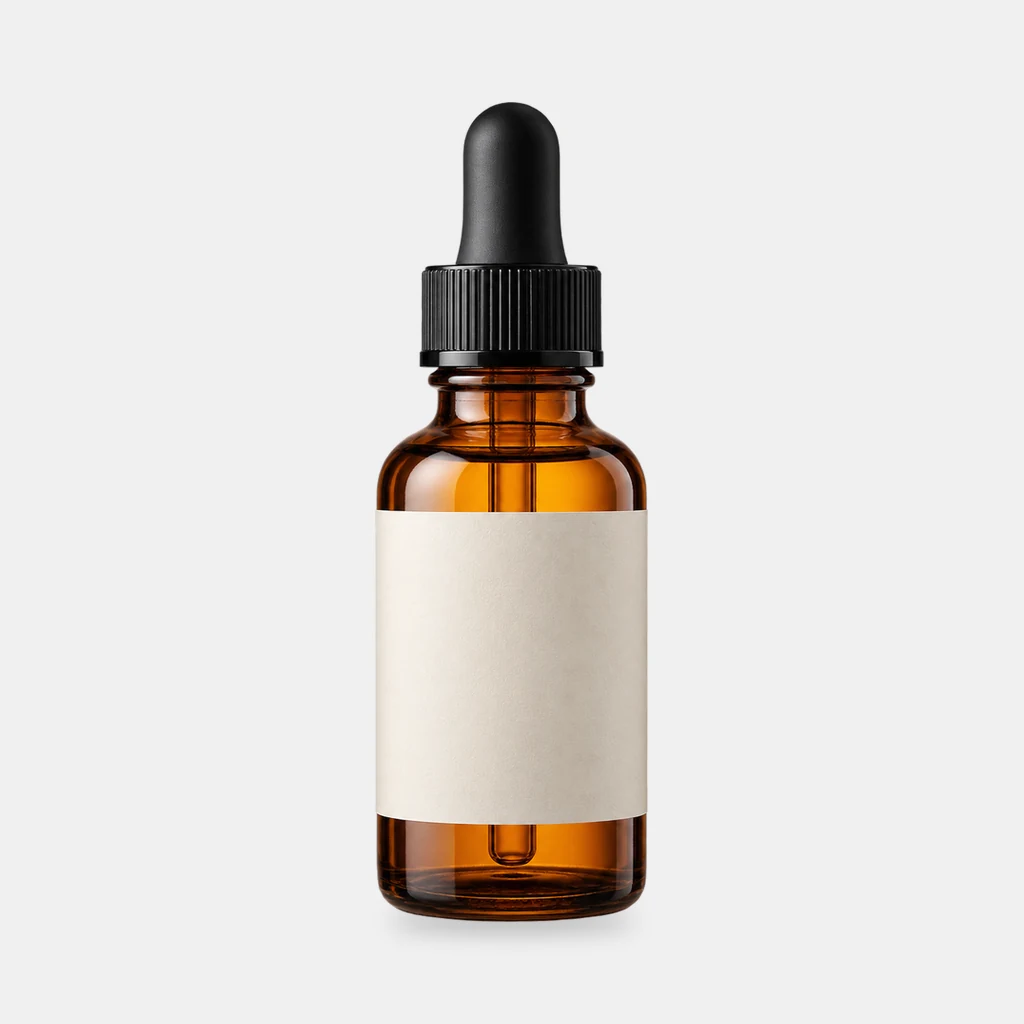
Grounded contact shadows for product shots
Derive a soft, tight or floating contact shadow from a transparent product PNG. Three presets, ComfyUI core nodes, no model download.
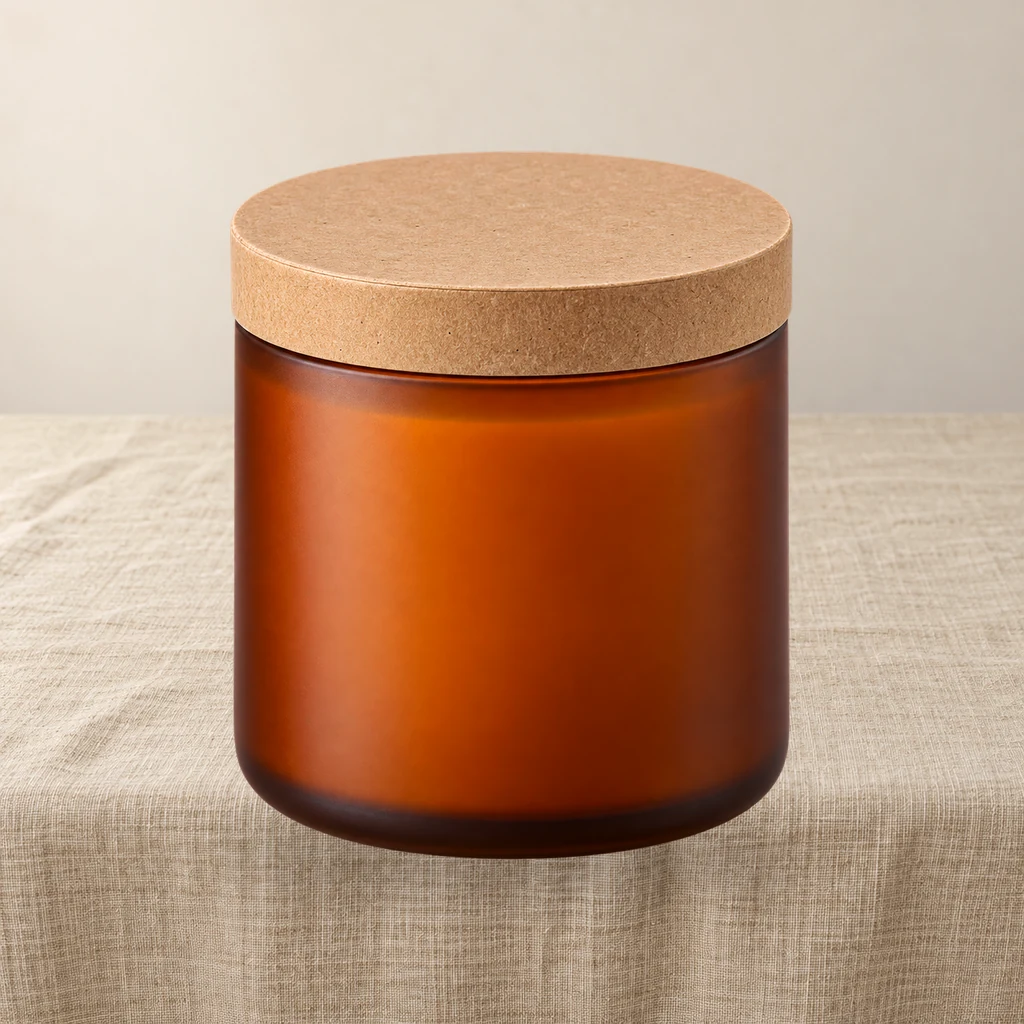
Product relight: match a cutout to the scene light
A low-denoise FLUX.1 schnell pass masked by the product alpha, then the original alpha is reattached so the output stays transparent and the silhouette does not drift.

Contact sheet pack: 2×2 and 3×3 product grids on white
Turn one product cutout into two 2000×2000 detail-page grids with even spacing and white margins. Pure ComfyUI core nodes, no model download.