Grounded contact shadows in ComfyUI without Photoshop
A clean cutout can still look pasted. Learn how to derive a believable contact shadow from the product alpha, and which preset fits which surface.
Related guides
- FLUX.1 schnell product scenes - Six marketplace crops ## The sticker look is not an edge problem
A clean cutout can still look pasted. The usual cause is the missing contact shadow. A real product leaves a darker area on the surface: its width is close to the product base, its edge is soft, and its direction follows the key light. Without it, the product floats.
This workflow does not paint a shadow; it derives one from the product alpha. You only need a transparent PNG.
Inspect the alpha first
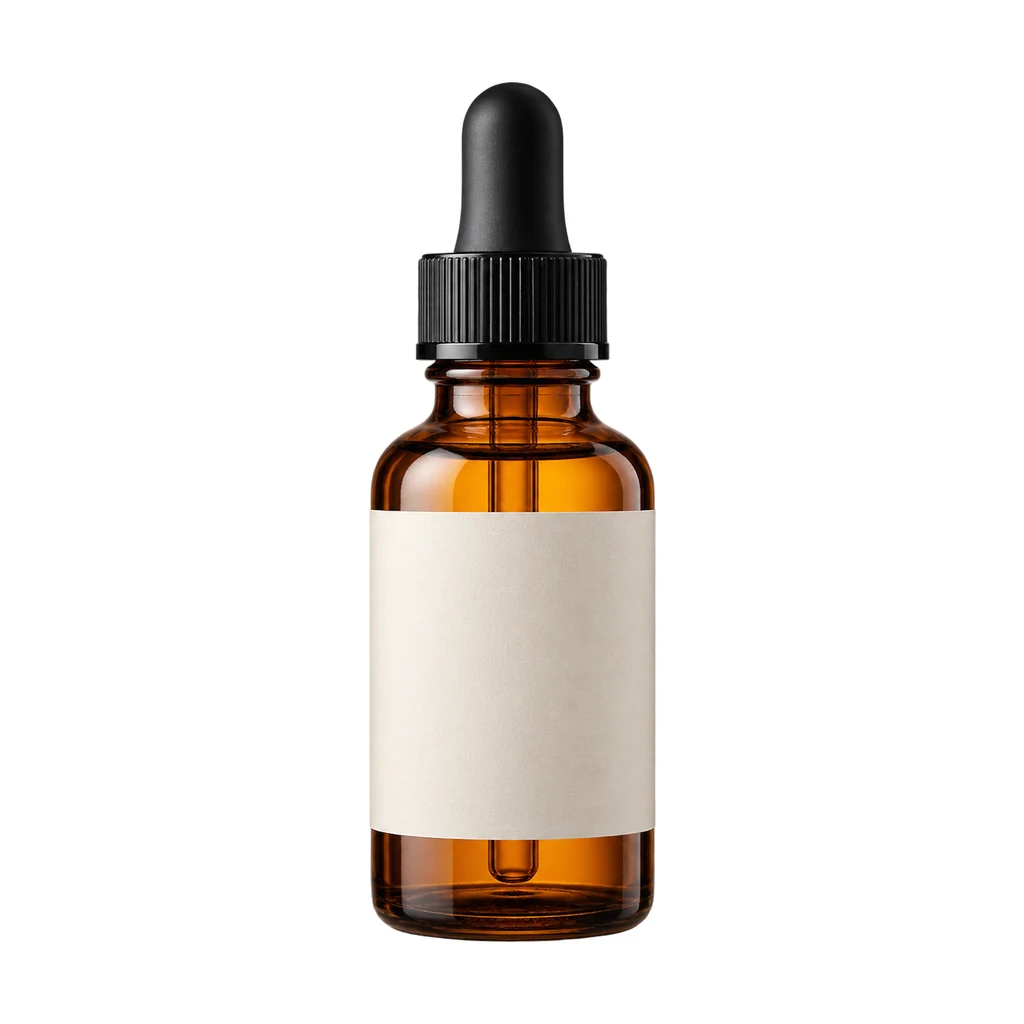
Before running the graph, look at the alpha on its own:
- Is the product base complete, or did the cutout eat a chunk?
- Are there floating specks that will become dark spots in the shadow?
- Are semi-transparent areas (glass, gauze) preserved?

If the alpha has specks, clean them in an external tool or use a mask-cleanup node that removes connected regions below a threshold.
Which preset to use
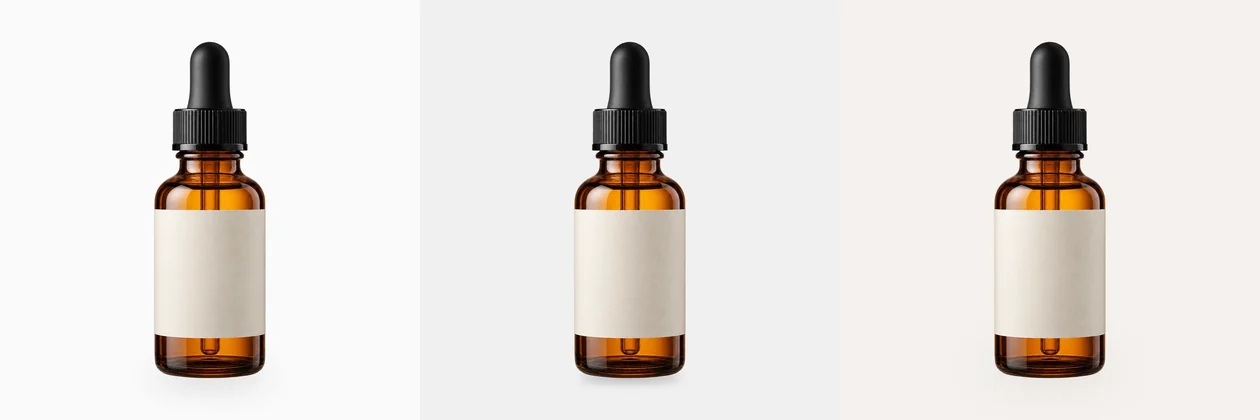
- Soft studio: large radius, low opacity; white, light grey or seamless studio. The product looks lit through a softbox.
- Tight tabletop: small radius, short offset; wood, stone, concrete. The dark area hugs the base with a defined edge.
- Floating: large offset, softer blur; shoes, bags, levitated display. A visible gap between product and shadow.
Node order
- 1
LoadImagereads the transparent PNG - 2
ImageScalecenters it on 1024 square - 3
ImageToMasktakes alpha - 4
MaskToImageconverts to grayscale - 5
ImageBlurapplies the preset radius - 6
ImageToMaskconverts back to a mask - 7On an
EmptyImagebackdrop, composite the shadow first, then the product - 8
SaveImagewrites the three presets
Do not reverse the order: product first and shadow second puts the shadow on top, which reads as dirt.
Direction and strength
The shadow direction must agree with the key light. If the product highlight is upper-left, the shadow goes lower-right; if the highlight is upper-right, the shadow goes lower-left. With multiple lights, pick the dominant one.
Start at 0.2 opacity. White backdrops can take 0.3; dark surfaces should drop to 0.15 or the shadow smears.
Three common failures
- Shadow too large: the product looks levitated. Reduce the width to 0.9× the product base.
- Shadow too dark: a dirty patch on white. Drop below 0.2 or increase the blur.
- Wrong direction: highlight and shadow fight. Rotate the preset 180° or use a product photo with a clearer key light.
Output and next step
The workflow writes three comparison images. Pick one and move to the scene compositor. If you also need marketplace sizes, finish the scene first, then run the crop workflow.
Surface-specific starting points
| Surface | Width vs. product base | Blur | Opacity | |---|---:|---:|---:| | Seamless white studio | 1.05× | 38 px | 0.30 | | Light oak / walnut | 0.90× | 14 px | 0.32 | | White marble | 0.95× | 22 px | 0.28 | | Dark stone / concrete | 0.85× | 18 px | 0.20 | | Linen / fabric | 1.10× | 46 px | 0.22 |
These are starting points, not laws. The darker the surface, the lower the opacity; a black shadow on a black table disappears, while the same shadow on white looks like dirt.
Using it on a batch
For a folder of products, keep the preset fixed across the batch. A consistent shadow is more important than a perfect shadow on one image. If a product is much taller or wider than the rest, adjust only the width multiplier, not the blur and opacity.
Run the shadow pass before the scene composite. If you composite the scene first, the shadow has to match a background that may still change.
Troubleshooting
- Shadow is a grey blob: opacity is too high or blur too low. Increase blur before lowering opacity; a soft edge reads more naturally.
- Shadow is invisible: the backdrop is too dark or the opacity is below 0.12. Raise it slightly or switch to a light backdrop.
- Shadow is offset too far: the product looks like it is jumping. Reduce the offset to one or two pixels for tabletop scenes.
- Shadow direction disagrees with the product: rotate the preset or choose a different source photo. Do not paint a second shadow.
Related guides
Related reading
- Workflow: Marketplace crop pack: Amazon, Etsy, Shopify and OG in one run
- Workflow: White canvas pack: fit any product into a clean marketplace frame
- Workflow: Four product scenes in one FLUX.1 schnell run
- Guide: One product photo, six marketplace crops: Amazon, Etsy, Shopify and OG
- Guide: Fit any product into a white marketplace frame without cropping
Workflows used in this guide
Check the version's test records and delivery status. Online trials are available only when enabled.
Grounded contact shadows for product shots
Derive a soft, tight or floating contact shadow from a transparent product PNG. Three presets, ComfyUI core nodes, no model download.

Product scene compositor: FLUX.1 schnell backgrounds, unchanged product pixels
Upload a transparent product PNG and a scene prompt. FLUX.1 schnell generates three backdrops; the product is composited from its alpha, so labels and logos are never redrawn.

Marketplace crop pack: Amazon, Etsy, Shopify and OG in one run
Turn one square product master into six canvas presets for listing review. Core ComfyUI nodes only, no model download. Check each platform before upload.
Keep reading
Fit any product into a white marketplace frame without cropping
Portrait, square and landscape shots all need the same clean square canvas. Learn a fit-and-pad workflow that keeps the whole product and adds a real safe margin.
FLUX.1 schnell product scenes without regenerating the product
Generate the set, composite the real product, and ground it with a contact shadow. A clean-room workflow that keeps packaging text and logos pixel-identical.
Product relight: matching a cutout to the scene light
A low-denoise FLUX.1 schnell pass masked by the product alpha, with the original alpha reattached. Where the safe range is, and when not to use it.