Product relight: matching a cutout to the scene light
A low-denoise FLUX.1 schnell pass masked by the product alpha, with the original alpha reattached. Where the safe range is, and when not to use it.
Related guides
- FLUX.1 schnell product scenes - Contact shadows: stop the sticker look ## What relighting solves
After compositing, if the product highlight points opposite the backdrop key light, it reads as pasted. Relighting changes only the product's light; it does not change shape, position or packaging information.
It fits a product shot with even studio light that needs to match warm window light, cool overcast or a soft top light. It does not fit mirror metal, glass or clear plastic: those reflections and refractions are not fixed by a simple repaint.
Step 1: lock the product area
Use alpha as a mask so only the product participates in the repaint. The background must be transparent; otherwise the mask brings the background along.
Inspect the alpha edge: a white fringe will be amplified by relighting. Clean it in an external tool first.
Step 2: low-denoise repaint
FLUX.1-schnell runs four steps at CFG 1 with denoise 0.2–0.3. That range changes light and color bias without changing structure.
- 0.2: most conservative, for branded text
- 0.25: default, most packaging
- 0.3: visible warm/cool shift, text still at risk
Above 0.35 small packaging text starts to blur; above 0.5 the model reinterprets the product and it is no longer suitable for SKU information.
Step 3: describe the target light
Describe light only, not the product:
warm window light from the left, soft shadow on the right, cozy interiorcool overcast daylight, soft top light, neutral color temperaturewarm tungsten lamp from the upper right, gentle falloff
Do not write “a scented candle”. Alpha already locks the product; naming it invites the model to redraw.
Step 4: reattach the original alpha
After the repaint, JoinImageWithAlpha reattaches the input's mask. ComfyUI's LoadImage mask is already inverted alpha, so wire LoadImage's MASK output straight in — inverting it again turns the whole product transparent.
The goal:
- Transparency and silhouette come from the input, untouched by the repaint
- Light inside the product comes from the low-denoise pass
- Text stability is a function of denoise, not of the compositing step
How to tell you went too far
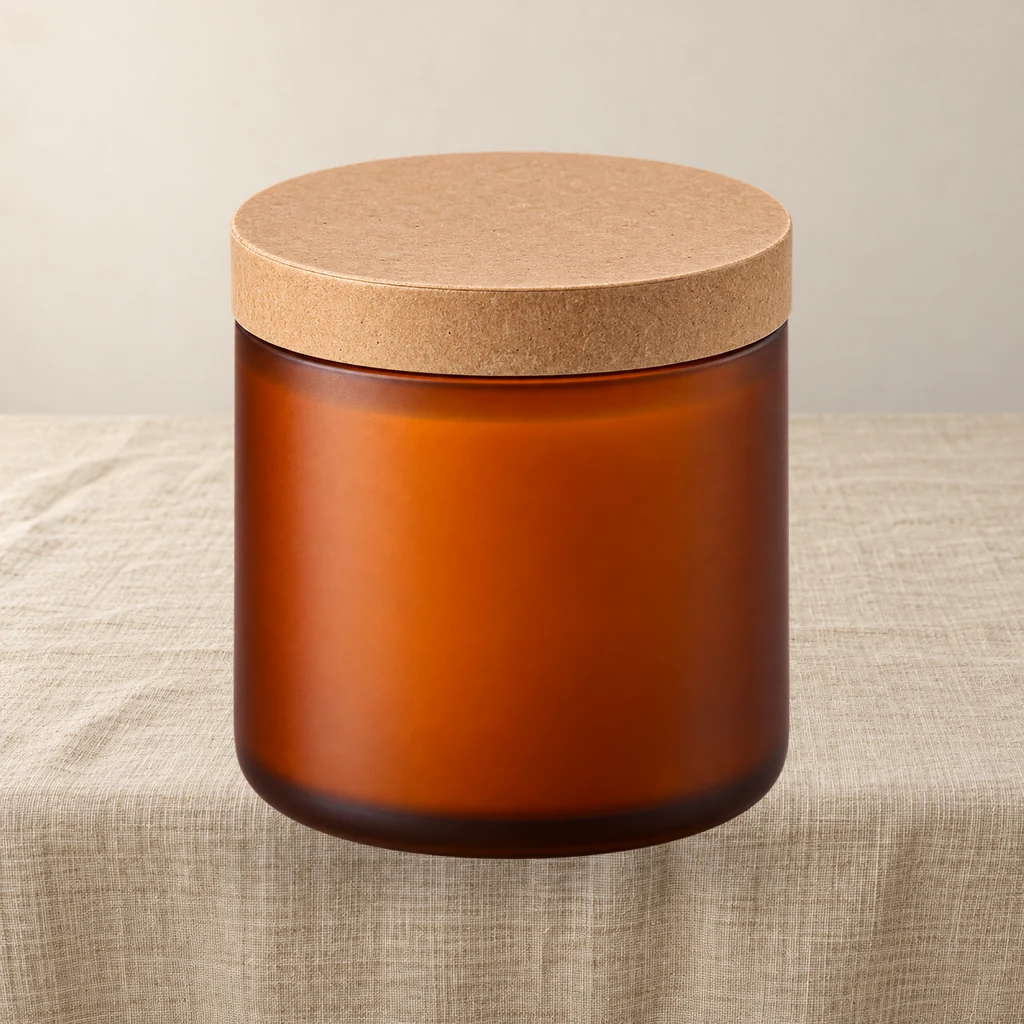
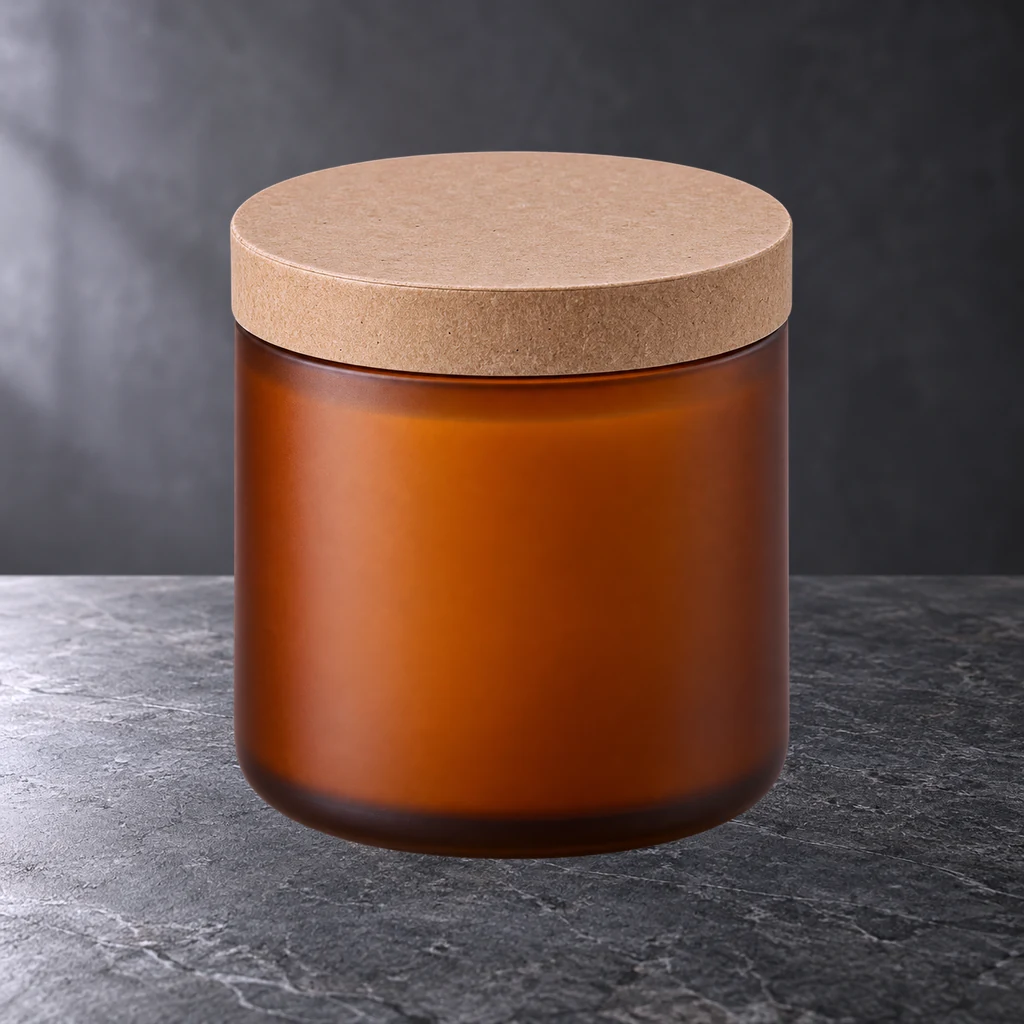
- Text edges soften: denoise too high
- Product color drifts: too many color words in the prompt
- Highlight direction is wrong: prompt light does not match the backdrop
- Product looks like a different material: past the safe range, it was repainted
Categories better shot for real
Mirror metal, glass, clear plastic and cosmetic bottles with complex reflections are hard to relight physically. Shoot them for real; if a composite is unavoidable, accept “good enough”, not “perfect”.
Three light recipes
These prompts are written for the product only; the background prompt is separate.
- Warm window, left:
warm afternoon window light from the left, soft falloff on the right side, gentle amber highlight, keep product color - Cool overcast:
cool overcast daylight, soft top-left light, neutral white balance, low contrast, keep product color - Tungsten lamp, upper right:
warm tungsten lamp from the upper right, soft shadow to the lower left, cozy indoor color, keep product color
The phrase “keep product color” matters. Without it, FLUX may shift the package color along with the light.
Denoise and seed
Set denoise first, then try two or three seeds at the same denoise. Changing both at once makes it impossible to tell which variable caused the difference. Keep the seed fixed when comparing 0.2 vs. 0.25 vs. 0.3.
For branded packaging, start at 0.2. For unbranded props, 0.25 is usually enough. Do not go above 0.3 without checking text at 100%.
Quality check before compositing
- Zoom to 100% on the smallest text; it should still be readable.
- Compare the product's base color against the original; a visible hue shift is a fail.
- Check the highlight direction against the scene key light.
- Check the alpha edge; relighting can create a faint halo.
If two checks fail, discard the pass and shoot the product with the right light instead.
Related guides
Related reading
- Workflow: Marketplace crop pack: Amazon, Etsy, Shopify and OG in one run
- Workflow: White canvas pack: fit any product into a clean marketplace frame
- Workflow: Four product scenes in one FLUX.1 schnell run
- Guide: One product photo, six marketplace crops: Amazon, Etsy, Shopify and OG
- Guide: Fit any product into a white marketplace frame without cropping
Workflows used in this guide
Check the version's test records and delivery status. Online trials are available only when enabled.
Grounded contact shadows for product shots
Derive a soft, tight or floating contact shadow from a transparent product PNG. Three presets, ComfyUI core nodes, no model download.
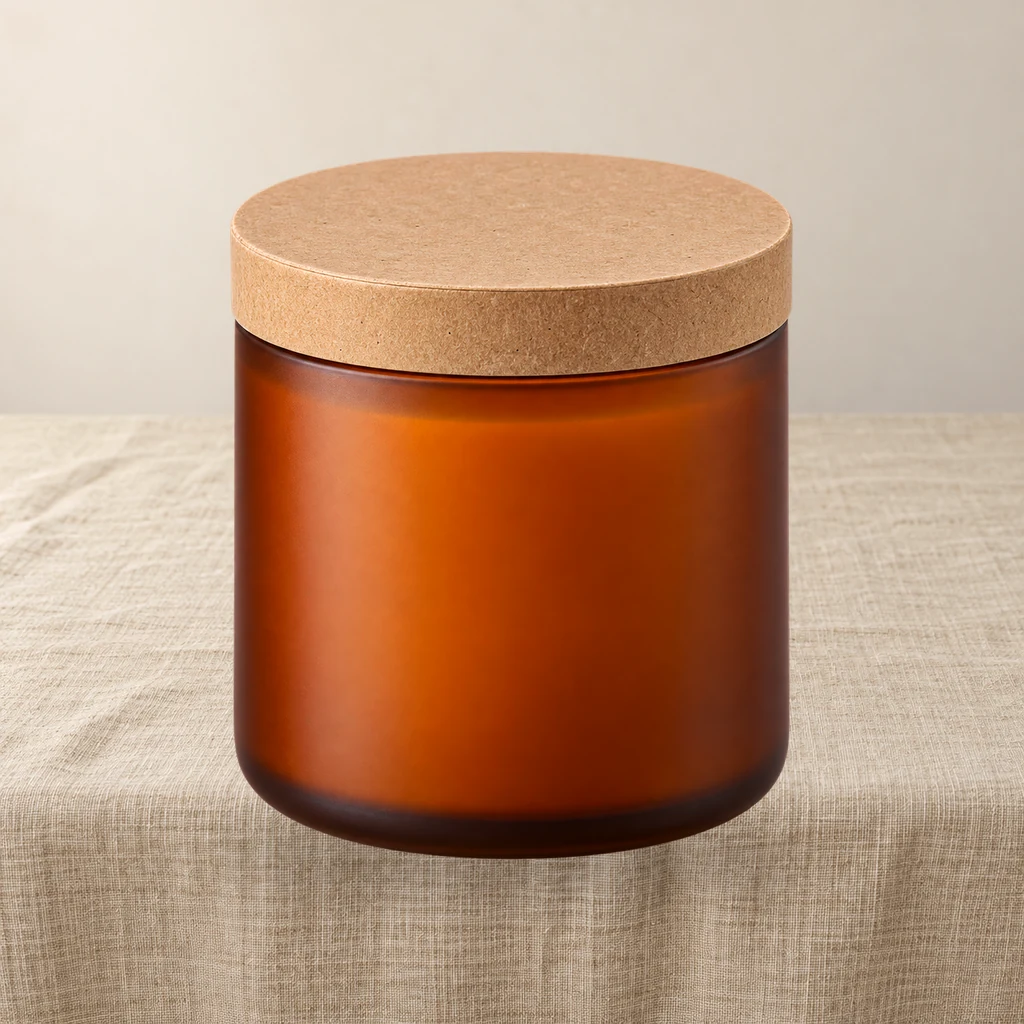
Product relight: match a cutout to the scene light
A low-denoise FLUX.1 schnell pass masked by the product alpha, then the original alpha is reattached so the output stays transparent and the silhouette does not drift.

Product scene compositor: FLUX.1 schnell backgrounds, unchanged product pixels
Upload a transparent product PNG and a scene prompt. FLUX.1 schnell generates three backdrops; the product is composited from its alpha, so labels and logos are never redrawn.
Keep reading
Fit any product into a white marketplace frame without cropping
Portrait, square and landscape shots all need the same clean square canvas. Learn a fit-and-pad workflow that keeps the whole product and adds a real safe margin.
FLUX.1 schnell product scenes without regenerating the product
Generate the set, composite the real product, and ground it with a contact shadow. A clean-room workflow that keeps packaging text and logos pixel-identical.
Build a 2×2 or 3×3 product grid in ComfyUI, evenly spaced
A detail-page grid should be a template, not a manual alignment job. Learn a core-node layout that keeps every tile the same size with clean white gaps.