One product photo, six marketplace crops: Amazon, Etsy, Shopify and OG
A practical crop workflow for product listing images: the six ratios that matter, how to keep safe margins, and why a plain resize fails.
Cropping is not resizing
Stretch a 2000×2000 image into 2000×1500 and the product looks squashed. Crop first and you may cut the product. The real difficulty in marketplace sizes is ratio, safe margin and background consistency, not resolution.
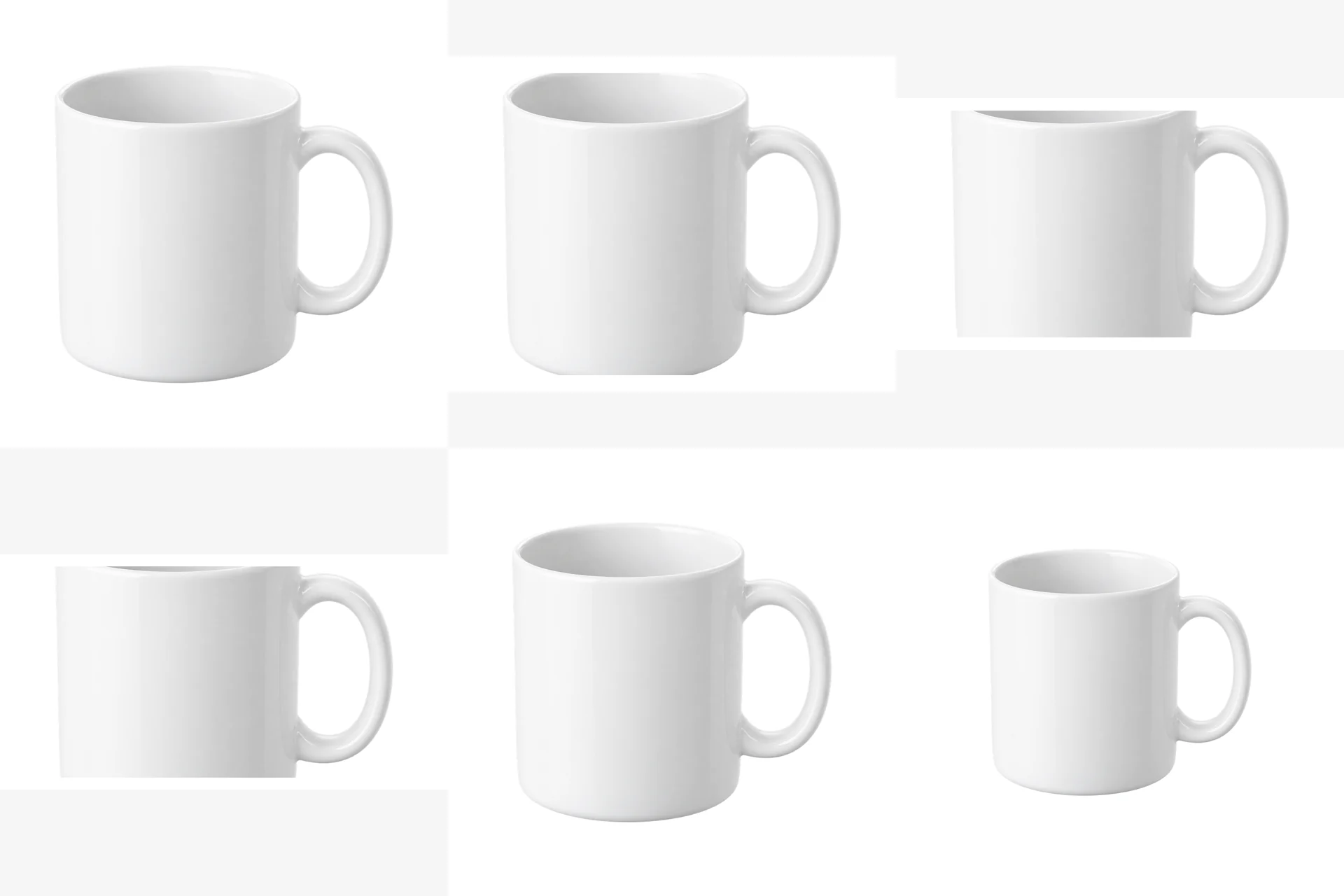
This workflow starts from one square master and builds six independent canvases. Each branch scales the master proportionally to a square of “canvas short side × fill” (90%, 85% for the thumbnail, 70% for the detail page), then centers it on pure white. Narrower canvases get a smaller product square, so a 16:9 banner never clips the product.

Where each size is used
- Amazon main: 2000×2000, 1:1, pure white background required
- Etsy 4:3 preview: 2000×1500, below the current recommended 2000px height
- Shopify hero: 1920×1080, 16:9, banners and collection pages
- Open Graph: 1200×630, social sharing thumbnail
- Thumbnail: 800×800, admin lists and search results
- Detail page padding: 1600×1600 at 70% fill, extra room for specs, copy or captions
Step 1: prepare a square master
Use a square source with the whole product centered and unnecessary padding removed. The workflow scales the entire image again: 8% source margins on both sides followed by 90% fill leave the subject spanning at most 75.6% of the output. Source fill and actual product coverage are different. Prepare a square canvas externally for a 4:3 or 3:2 source without clipping the product.
Keep the background clean. White, light grey or a transparent PNG all work. A busy background makes the margins look inconsistent across sizes.
Step 2: run all six branches
The graph starts with one LoadImage and splits into six ImageScale branches. Each branch scales the master proportionally to a square of “canvas short side × fill”, then uses ImageCompositeMasked at (canvas − product area) ÷ 2 to place it in the middle of a white EmptyImage. The product area is always square, so the product is neither stretched nor clipped.
Transparency is handled by InvertMask: ComfyUI's LoadImage mask is inverted alpha, and without the inversion the composite is either pure white or black. A PNG with alpha punches the background out correctly; an opaque JPG is treated as a full-frame product, which adds a white ring around the canvas.
Step 3: check the safe margin
At 100% zoom, check both subject size and all four edges:
- Product too close to an edge or too small: adjust source padding and preview the destination crop
- The product shadow is clipped: the shadow counts as part of the product
- The white looks grey: check the source background and the composite canvas; it must be
#FFFFFF
Step 4: accept per marketplace
Amazon's official photography guide recommends at least 85% product coverage; check the category's main-image requirements too. A 2000×2000 file alone does not establish suitable subject coverage.
Etsy recommends at least 2000px in both dimensions. Treat this version's 2000×1500 export as a ratio preview and re-export from a high-resolution source, for example at 2800×2100. Shopify presentation depends on the theme; 1920×1080 is a banner preset, not a universal product-image requirement. Preview social crops in the destination channel too.
When not to use this workflow
If you need content-aware outpainting, cropping cannot help. A vertical source that must become a 16:9 banner with the whole product intact needs a scene or outpaint workflow, not a hard crop.
If the product needs a new scene, run the scene compositor first, then come back for marketplace sizes. Cropping only fits an existing frame into the right canvas.
Delivery checklist
- Six files, each named for its marketplace
- Correct resolution and ratio for every file
- Product not touching the edge; shadow intact
- Pure white, not light grey
- OG information inside the center safe zone
- No text, watermark or platform-prohibited decoration
Related guides
Related reading
- Workflow: Marketplace crop pack: Amazon, Etsy, Shopify and OG in one run
- Workflow: White canvas pack: fit any product into a clean marketplace frame
- Workflow: Four product scenes in one FLUX.1 schnell run
- Guide: Fit any product into a white marketplace frame without cropping
- Guide: Build a 2×2 or 3×3 product grid in ComfyUI, evenly spaced
Workflows used in this guide
Check the version's test records and delivery status. Online trials are available only when enabled.
Product scene compositor: FLUX.1 schnell backgrounds, unchanged product pixels
Upload a transparent product PNG and a scene prompt. FLUX.1 schnell generates three backdrops; the product is composited from its alpha, so labels and logos are never redrawn.
Four product scenes in one FLUX.1 schnell run
One product matte, four scene prompts, one ComfyUI job. Shared product position and shadow; four listing-ready outputs.
Marketplace crop pack: Amazon, Etsy, Shopify and OG in one run
Turn one square product master into six canvas presets for listing review. Core ComfyUI nodes only, no model download. Check each platform before upload.
Keep reading
Fit any product into a white marketplace frame without cropping
Portrait, square and landscape shots all need the same clean square canvas. Learn a fit-and-pad workflow that keeps the whole product and adds a real safe margin.
FLUX.1 schnell product scenes without regenerating the product
Generate the set, composite the real product, and ground it with a contact shadow. A clean-room workflow that keeps packaging text and logos pixel-identical.
Product relight: matching a cutout to the scene light
A low-denoise FLUX.1 schnell pass masked by the product alpha, with the original alpha reattached. Where the safe range is, and when not to use it.